

Guest Account Cleanup
Guest accounts outlive the projects they were invited for. This desktop tool finds them in your Microsoft Entra ID tenant and retires them in a controlled sequence — scan, review, block, grace period, delete.
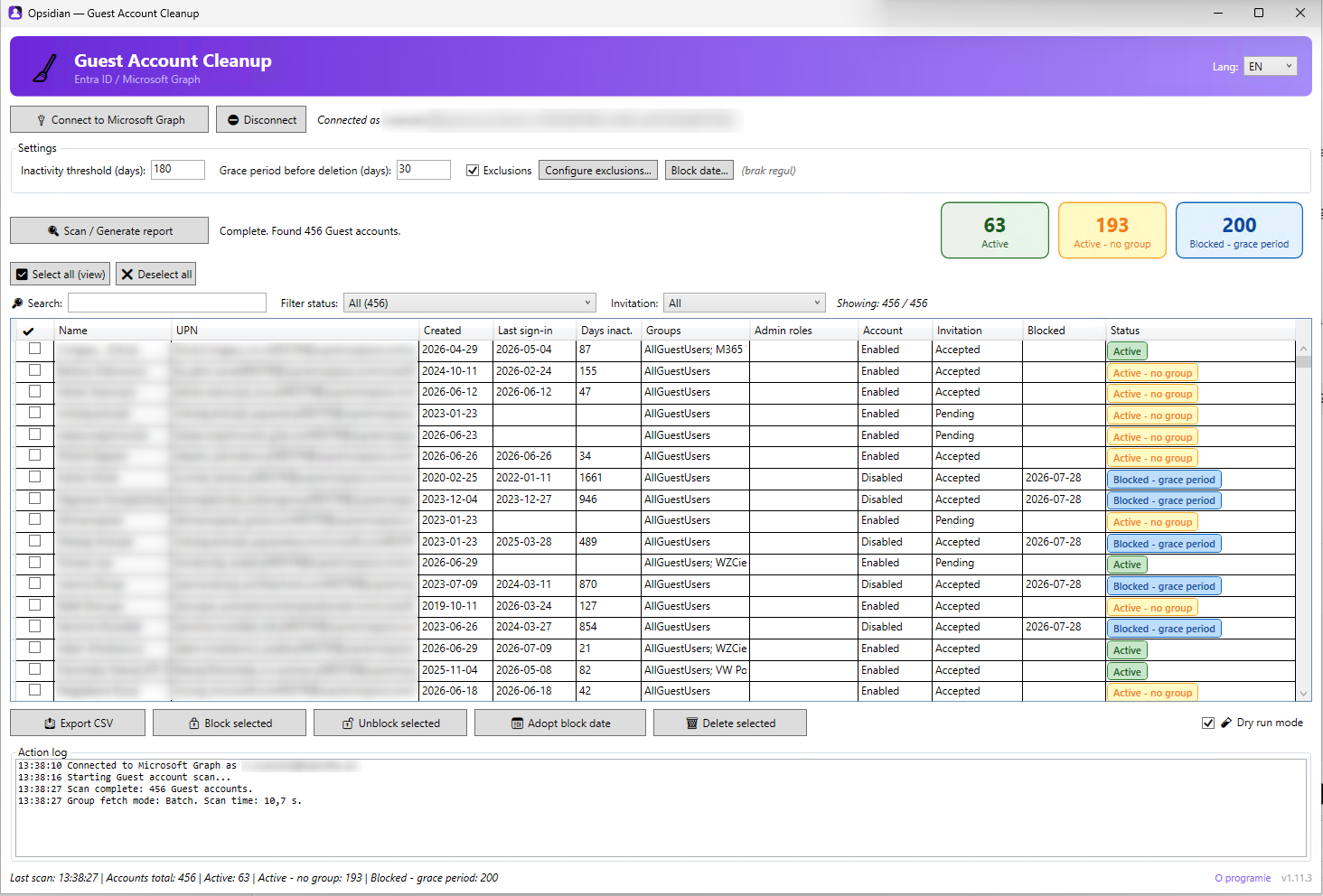
Supervised by design, not fully automatic
Five steps, and you are the one moving accounts between them.
Scan
Reads every Guest account from Entra ID through Microsoft Graph and analyses sign-in activity.
Review
A sortable table with dashboard tiles per status, search by name, UPN or group, and filters.
Block
Accounts you select get disabled (accountEnabled = false) and the block date is recorded.
Grace period
Nothing qualifies for deletion until the configured number of days has passed. Default: 30.
Delete
Accounts past the grace period can be removed. Entra keeps them in its recycle bin for 30 days, so a mistake is recoverable.
Why not fully automatic? A guest who has not signed in for a year is not automatically a guest who no longer needs access — auditors and contractors are used rarely but deliberately. On top of that, signInActivity from Microsoft Graph can be missing or incomplete depending on licensing (full sign-in history requires Entra ID P1/P2) and data retention.
So the report never acts on its own: every block and every delete requires accounts ticked in the table and a confirmation in a dialog.
Want the reasoning behind it first? Our guide on finding inactive guest accounts in Entra ID covers the raw Graph approach and the judgement calls involved.
Nothing changes without your confirmation
Deleting the wrong guest account is expensive. Every layer here exists to make that hard.
Dry run by default
Block, unblock and delete are simulated and written to the action log. Going live means unticking the box and reading a red LIVE MODE warning first.
Confirmation with the list
Every real action opens a dialog listing the affected accounts. There is no apply-to-everything shortcut anywhere in the tool.
Exclusion rules
An account is skipped if it belongs to your exclusion group or carries the exclusion attribute (extensionAttribute15 = DoNotDelete by default).
Entra soft-delete
Deletion in Entra ID is a soft-delete — the account sits in the 30-day recycle bin and can be restored from the portal or PowerShell.
Unblock is one click
Blocked too eagerly? Select the accounts and unblock them — same table, same confirmation dialog, no waiting.
Log and CSV export
Every operation is timestamped in the action log, and any scan exports to CSV — for a second opinion or an audit trail.
Nine statuses, one recommended action each
After a scan every guest carries exactly one status, colour-coded in the table. Clicking a dashboard tile filters to it.
- Active Account is active, signed in within the inactivity threshold, assigned to groups.
- Active — no group Account is active but only assigned to the default All Guest Users group.
- To be blocked Account inactive longer than the threshold — recommended for blocking.
- Blocked — grace period Account is blocked but the grace period has not elapsed yet.
- Blocked — date unknown Account is disabled but the block date is unknown — blocked outside the app or on another machine. Does not qualify for deletion, requires manual review.
- Group data unavailable The group list could not be fetched for this account. This does not mean the account has no groups — it is simply unknown. Re-run the scan before deciding.
- To be deleted Account is blocked and past the grace period — ready for deletion.
- Excluded Account protected by exclusion rules — cannot be blocked or deleted.
- No sign-in data No sign-in information in Graph — may be due to a missing Entra ID P1/P2 license.
Details that matter in a real tenant
Thresholds are yours
Inactivity threshold (default 180 days) and grace period before deletion (default 30 days) are settings in the GUI, not hardcoded assumptions.
Where the block date lives
Entra ID does not record when an account was disabled. You pick: a local state file, or an extension attribute written on the guest account itself — the second option survives across admins and machines.
Built for large tenants
Group memberships are fetched in Graph batches of 20 guests per request. Measured on 454 accounts: 65.7 s down to 8.2 s versus one request per guest.
Polish and English UI
Switch language from the header without restarting. The choice is remembered for the next launch.
Shared data, not per-profile
Logs, reports, settings and block state live under ProgramData, so every admin on the machine works against the same history.
Optional scheduled report
A read-only script can generate the CSV report on a Task Scheduler run. It never blocks and never deletes anything — reporting only.
What it needs to run
| Operating system | Windows 10 / Windows 11 (.NET Framework 4.8 required) |
|---|---|
| PowerShell | PowerShell 5.1 (built into Windows) or PowerShell 7+ |
| Graph modules | Microsoft.Graph.Authentication, Microsoft.Graph.Users, Microsoft.Graph.Groups — installed automatically by the installer or on first launch |
| Account | An administrator permitted to manage guest users in Entra ID |
| License | license.lic file provided by Opsidian |
User.Read.All |
Read guest accounts, their attributes and signInActivity |
|---|---|
User.ReadWrite.All |
Block (accountEnabled = false), unblock and delete accounts |
AuditLog.Read.All |
Access to signInActivity — the last sign-in date |
Group.Read.All |
Read group memberships and resolve the exclusion group by name |
RoleManagement.Read.Directory |
Spot guests holding administrative roles |
The tool signs in interactively with Connect-MgGraph. On first run these permissions need admin consent if your tenant requires it.
What the tool does not do
You are installing something that can disable and delete accounts in your directory. Here is exactly how far it reaches.
Runs on your machine
There is no backend, no Opsidian account and no cloud component. The tool is a desktop application; the only service it talks to is Microsoft Graph, in your tenant, as you.
No telemetry
Nothing is reported back to us — no usage statistics, no error reports, no account data. There is no code in the tool that calls anything except Microsoft Graph.
Your sign-in, delegated permissions
Authentication is interactive through Connect-MgGraph under your own admin account. No application secret or certificate is stored anywhere, so the tool cannot act without a signed-in administrator.
Signed installer
The launcher and the setup are both code-signed during the build, so Windows can verify the package came from us and has not been altered on the way.
Offline licence check
The licence is a signed file validated locally. No activation server, no phoning home, no reason for the tool to reach the internet outside Graph calls.
Your data stays put
Scan results, CSV reports, logs and block state are written to ProgramData on the machine you run it from. Nothing is uploaded, and removing the app leaves that data with you.
Want to see it against your tenant?
Tell us roughly how many guest accounts you are dealing with and we will arrange a demo. A scan is read-only, and dry run stays on.
Get in Touch